GrapheneOS beginner guide — what to expect your first week.
GrapheneOS is not harder than stock Android — it is different. Different in the right ways, and unfamiliar in a handful of small ways. This guide closes the gap between "I know it's more private" and "I know how to use it every day."
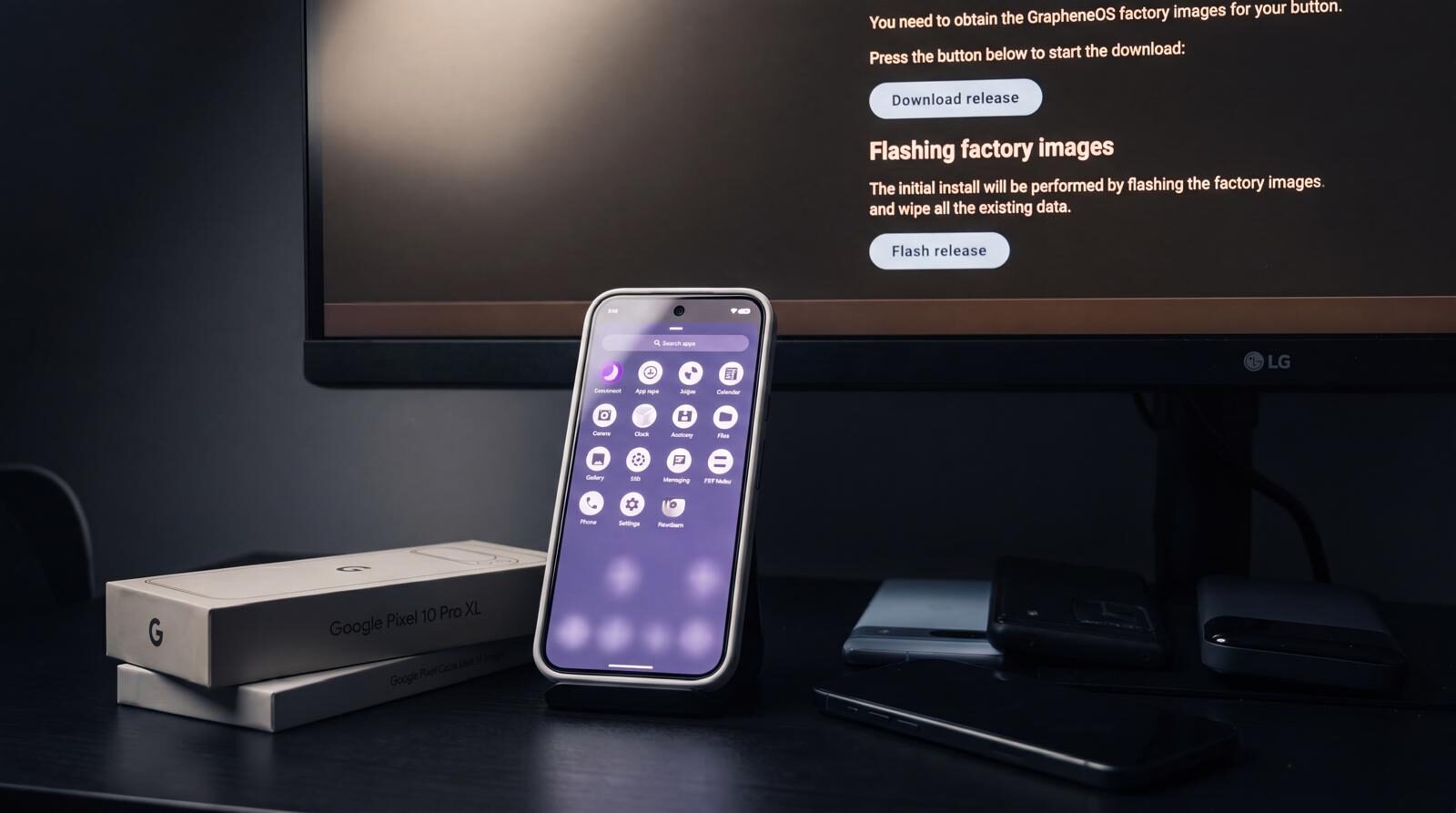
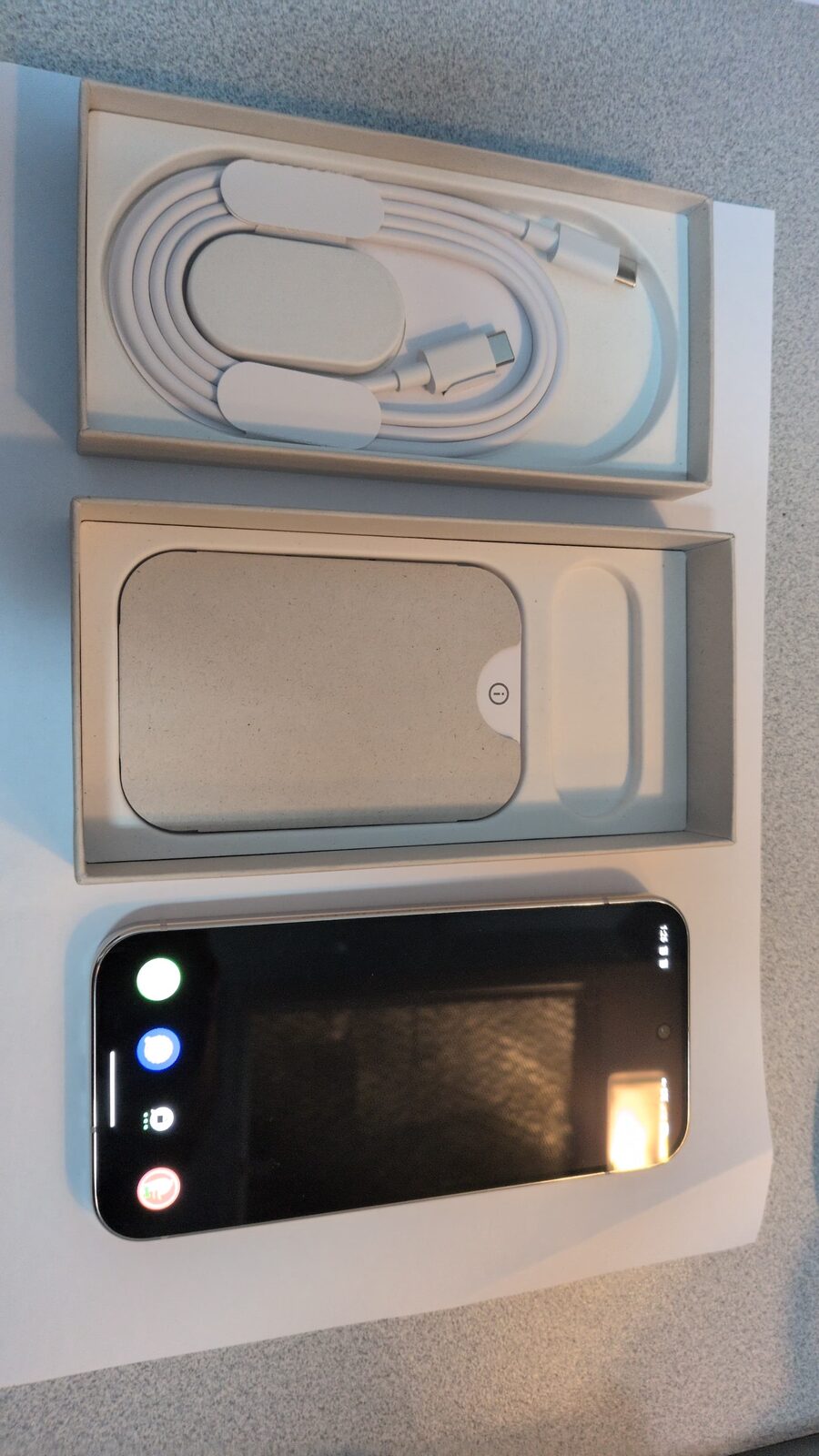
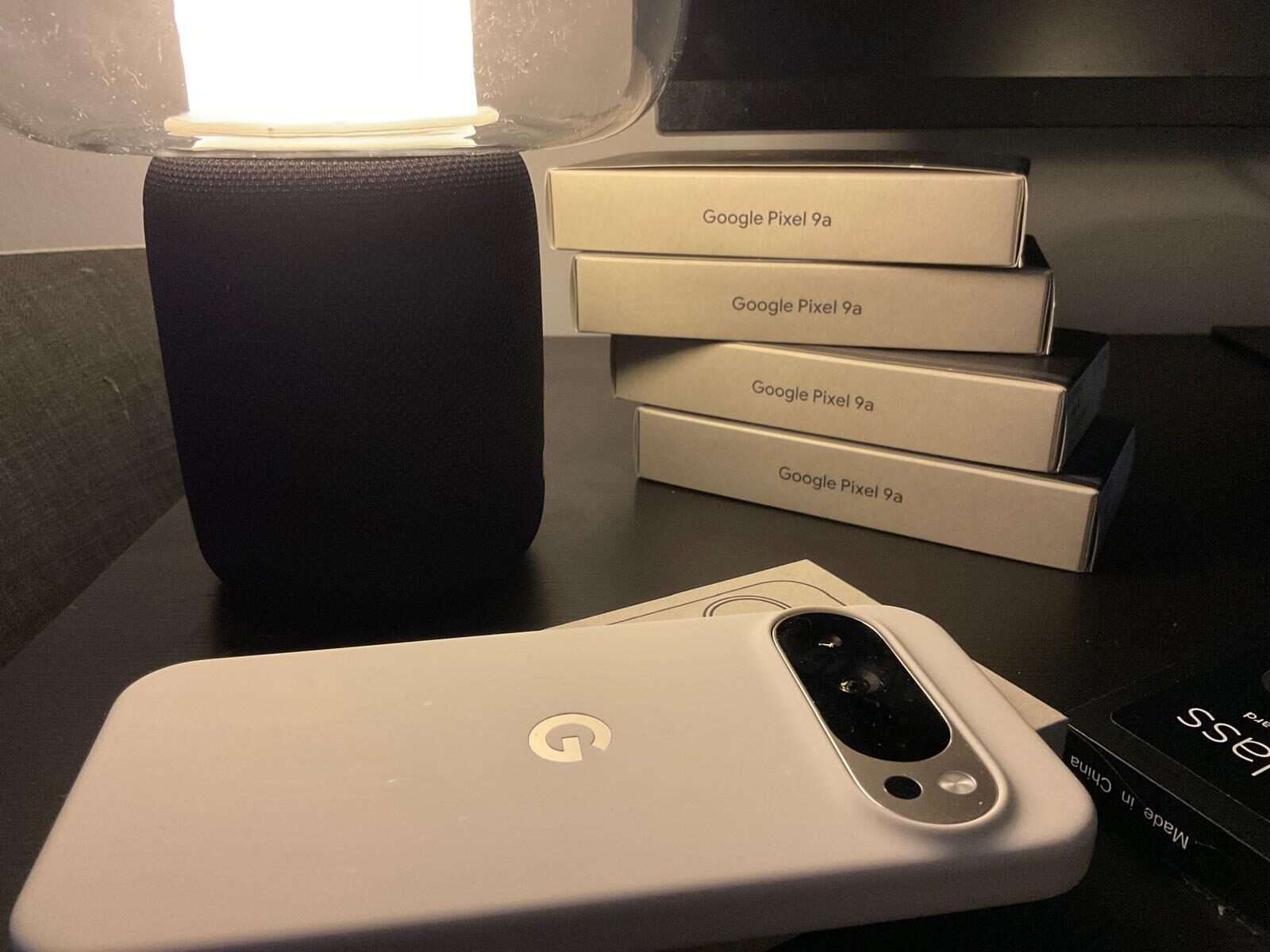
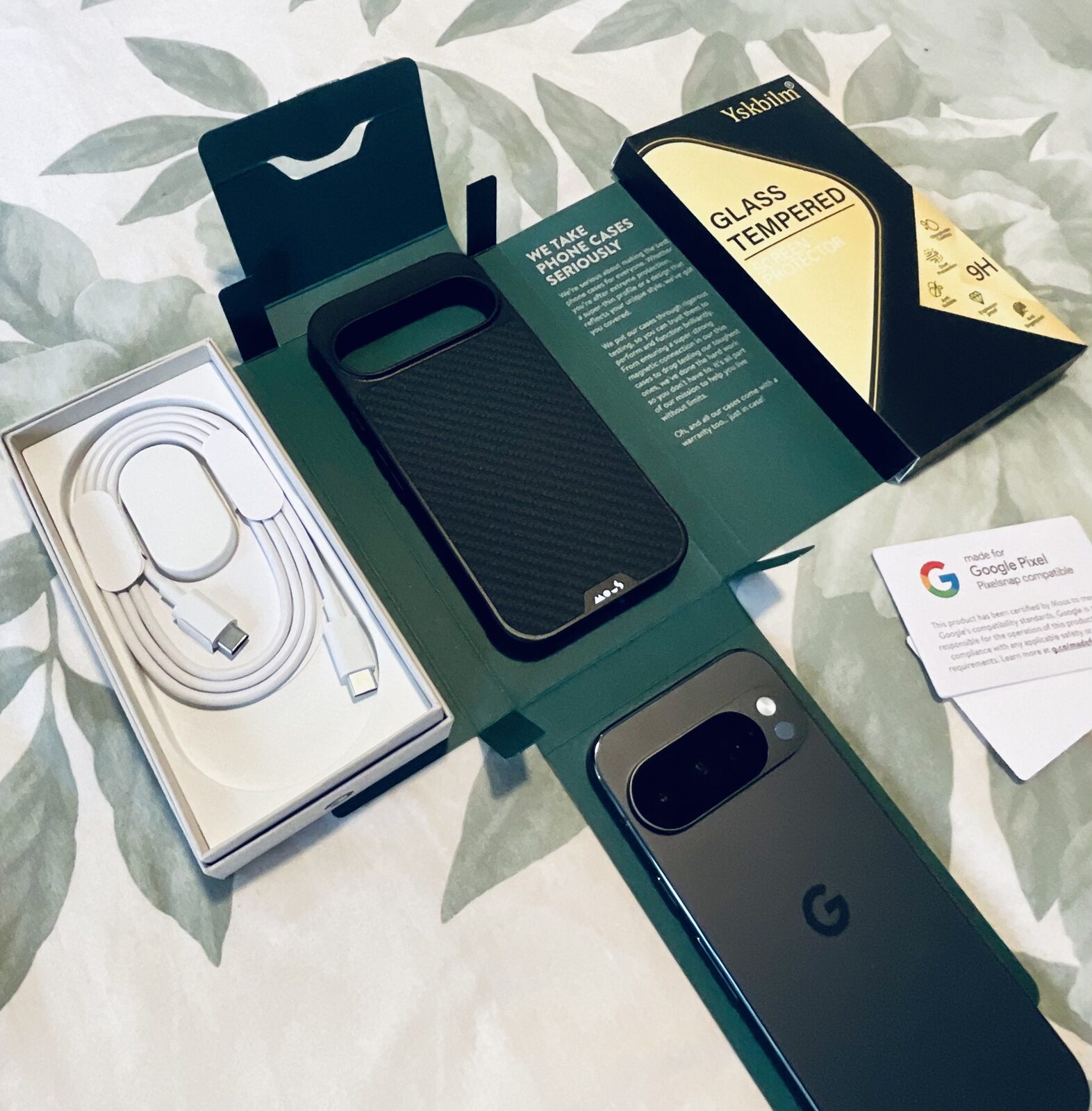
Prepared Pixel, visible proof.
A buyer guide should show the phone, the boot state and the setup work behind the recommendation — not just another block of specifications.
Most of what makes you hesitate about switching will resolve in a few days of use. The things that do not resolve — no iMessage, no Google account in your primary profile — are features, not bugs. Once you see them that way, the experience clicks.
What is GrapheneOS, in plain language
GrapheneOS is a version of Android that has been rebuilt from the ground up with privacy and security as the primary design goals. It runs on Google Pixel hardware (the same hardware your bank apps and everyday apps already support), but everything Google has baked into Android — Play Services, Google Maps, Gmail integration, telemetry — has been removed or made optional.
The result is a phone that works exactly like a phone, but does not routinely send your location, app usage, and contact lists to Google in the background. For a deeper look at how it compares to stock Android, iPhone, and Samsung, see our GrapheneOS overview, GrapheneOS vs iPhone, and GrapheneOS vs Samsung pages — and if you are still weighing it up, our honest take on whether GrapheneOS is worth it.
The short answer: it feels like Android. Because it is.
Before you start: what changes, what stays the same
What stays exactly the same
- The look and feel of Android — same settings layout, same app drawer, same notification shade
- Calls and SMS (through your carrier, exactly as before)
- The camera — GrapheneOS ships its own camera app that uses the full Pixel hardware stack
- Bluetooth, Wi-Fi, hotspot — all work identically
- Most apps — anything that does not depend on Google Play Services runs without any change
- Australian banking apps — CommBank, ANZ, Westpac, NAB, and most others work via Sandboxed Google Play (we set this up for you)
What is genuinely different
- No Google account required. You can add one in a sandboxed secondary profile if you need it, but the default is no Google account at all.
- No Google Play Store by default. Apps come from F-Droid, direct APKs, or the GrapheneOS App Store. Google Play is available sandboxed in a secondary profile.
- No iMessage. If you are switching from iPhone, iMessages sent to your number will need to be rerouted — we help with iMessage deregistration.
- Different messaging apps. Signal and Threema replace iMessage and standard SMS for secure conversations. They are better tools — just different ones.
- Per-app network and sensor toggles. A feature you will quickly come to rely on. You can deny any app access to the internet, camera, microphone, or location entirely — not just "when in use" but completely.
Your first day: what to set up
1. Encrypted messaging
The first thing to configure is how you will message people. On a Privacy Devices device, Threema is already installed and activated — you have a Threema ID that is separate from your phone number. Tell your closest contacts your Threema ID. For people who are already on Signal, Signal is also installed.
If you need WhatsApp for some contacts, it can live in a secondary profile with Sandboxed Google Play. You will use it less than you expect once Threema is running — but it is there if you need it. For a full comparison, see Signal vs Threema on GrapheneOS.
2. VPN
Mullvad VPN is pre-configured with always-on and kill-switch enabled on every Privacy Devices device. It is already running. You do not need to do anything. If you notice a connection prompt, accept it — that is the OS-level VPN permission which is required once. For everything VPN-related, see Mullvad VPN on GrapheneOS.
3. Profiles
GrapheneOS supports multiple fully isolated user profiles. Think of each profile as a completely separate phone — different apps, different data, different identity. We pre-configure two profiles on every device: a primary profile (your private identity — Threema, Mullvad, no Google) and a secondary profile for apps that require Google Play Services, including banking apps.
To switch profiles, swipe down, tap the user icon, and select the profile you want. Apps in one profile cannot see anything in another.
4. App installs
For privacy-clean apps (Signal, Bitwarden, Organic Maps, K-9 Mail, Standard Notes), go to F-Droid in your primary profile — it is already installed. For banking apps and anything that requires the Play Store, go to your secondary profile where Sandboxed Google Play is installed. See Best GrapheneOS Apps for Privacy for the full list of what we recommend.
Your first week: things that will surprise you (and why they're fine)
"I can't find the app I want"
Some apps are Play Store only and not pre-installed. They live in your secondary profile. Open the secondary profile, open the Play Store (sandboxed), install what you need. It works like a normal Play Store install. You will only need to do this once per app.
"My banking app isn't working"
Make sure you are in the secondary profile where Sandboxed Play is installed, not the primary profile. If the app is installed in the right profile and still not working, it may be using aggressive attestation checks — contact us and we will advise. The vast majority of Australian banking apps work without issue.
"My Google Maps doesn't work"
Organic Maps is installed in the primary profile and covers road navigation, public transport, and hiking very well for Australia. If you need Google Maps specifically, install it in the secondary profile with Sandboxed Play. For most day-to-day navigation, Organic Maps becomes the preference within a few days — it works offline, has no ads, and builds no location history.
"My contacts aren't syncing"
Without a Google account in the primary profile, contacts live locally. If you exported your contacts as a .vcf file before switching, import them via Contacts → Import. Contacts sync to a privacy-friendly service (like Nextcloud or iCloud via CalDAV) if you set that up. We help with this during device setup.
"Why does my battery drain seem different?"
Without Google Play Services running continuously in the background, battery behaviour often improves. Standby drain in particular is noticeably better on GrapheneOS than stock Android for many people, because the background wake-locks that Play Services holds on stock Android are absent here. If drain seems high, check which apps have network access and whether always-on VPN is consuming more than expected.
Understanding profiles in depth
Profiles are the single most powerful feature of GrapheneOS for everyday privacy. Once you understand how they work, you will use them deliberately rather than accidentally.
Owner profile (Profile 0)
The Owner profile is special: it is the only one that can install new profiles, manage device encryption, and access certain low-level settings. We configure this as a clean profile with no Google account, no social apps, and nothing that calls home. Threema, Mullvad, Vanadium (the browser), and essential privacy tools live here.
Work / secondary profiles
Secondary profiles are fully isolated from the Owner profile. A secondary profile with Sandboxed Google Play can run banking apps, the Play Store, and Google Maps — but everything in it is contained. If the secondary profile is compromised or sends data to Google, it cannot access anything in the Owner profile.
Switching profiles
Pull down from the top of the screen, tap the avatar/user icon, and switch. The device re-enters that profile's session. The transition takes about one second.
Settings worth knowing about
- Settings → Network & internet → VPN — confirm always-on is enabled for Mullvad with the kill-switch on
- Settings → Apps → [App Name] → Permissions → Network — the per-app network toggle that stock Android does not have. Block any app from reaching the internet completely.
- Settings → Security → Auto reboot — returns the device to Before First Unlock state after a set idle period. Shorter is more secure; we set it to 18 hours by default.
- Settings → Security → Duress password — part of Phantom Protocol. A second PIN that triggers a controlled wipe of sensitive data. Optional, pre-configured on executive-tier devices.
- Settings → Privacy → Sensors off toggle — kills camera, microphone, accelerometer, and all sensors globally. Available from quick settings tile.
What to do if something doesn't work
Most issues on GrapheneOS fall into one of three categories:
- App is in the wrong profile. Banking apps need the secondary profile (Sandboxed Play). Privacy apps work in the primary profile.
- App needs Google Play Services. Install in the secondary profile where Sandboxed Play is configured.
- Network permission is blocked. Settings → Apps → [App Name] → Network — re-enable if needed.
If none of those resolve it, contact us directly — we support every device we ship and have seen most edge cases. We can diagnose and resolve remotely in most cases. For devices we configure, the setup is tested before dispatch and documented, so we know your exact configuration.
For setup and deployment services, see our services page. All devices we ship include initial setup and post-purchase support.
GrapheneOS beginner guide — FAQ
Do I need to be technical to use GrapheneOS?
Not at all. GrapheneOS looks and feels like Android — the same settings menus, the same app drawer, the same notification shade. The differences (profiles, per-app network toggles, VPN integration) become natural within a few days. On a Privacy Devices device, everything is pre-configured before dispatch, so there is nothing to set up yourself.
Can I use WhatsApp on GrapheneOS?
Yes. WhatsApp requires Google Play Services, so it goes in the secondary profile where Sandboxed Google Play is installed. It works normally there. That said, once Threema and Signal are set up, most Privacy Devices customers find they use WhatsApp less — but it is available if contacts require it.
Will I lose my photos and contacts when switching?
Not if you export them before switching. We recommend exporting contacts as a .vcf file and photos to any storage location (local, cloud, or external drive) before the device change. On a Privacy Devices device, we help with the migration as part of setup — contacts, authenticator apps, and important data are transferred to the new device.
What happens if I buy a new Pixel later — can I move GrapheneOS to it?
Yes. GrapheneOS can be installed on any supported Pixel. Privacy Devices offers re-flash services for customers who upgrade hardware. Your Threema ID and Mullvad account transfer to the new device — only local app data needs to be migrated.
Is GrapheneOS legal to use in Australia?
Yes, completely. Installing an alternative operating system on hardware you own is entirely lawful in Australia. Encrypted phones are legal; see our page on Encrypted Phones Legal in Australia for the full context. We prepare and sell these devices openly.
What is "Sandboxed Google Play" and is it safe?
Sandboxed Google Play is GrapheneOS's implementation of Google Play Services that runs without elevated permissions — the same sandboxing applied to all other apps. Google Play cannot access your contacts, files, sensors, or any other app when running in the sandbox. It is functionally a contained Google environment inside a secondary profile, not a full Google integration.
Ready to switch? We handle everything.
Every Privacy Devices Pixel arrives pre-configured: profiles set up, apps installed, VPN active, messaging ready. Nothing to configure. Just use it.
Browse Devices → Setup & Deployment Services