Update Troubleshooting
Keeping GrapheneOS up to date is one of the most important things you can do for your device's security. Updates deliver vulnerability patches, stability improvements, and compatibility fixes. The update system is designed to be safe and resilient — but occasionally, issues occur. This guide covers the normal update process, how to resolve common problems, and what to do if something goes wrong.

Why it matters
GrapheneOS receives frequent security and feature updates. Each update patches known vulnerabilities, and delaying updates leaves those vulnerabilities open. The A/B partition system used by GrapheneOS means updates install to an inactive partition while your current system keeps running. If an update fails, the device stays on the working version. This is a safety net — but understanding how it works helps you respond correctly when something does not go as expected.
How the normal update process works
GrapheneOS handles updates with minimal user intervention. Here is the standard flow:
- The device checks for updates automatically in the background. You can also check manually at any time by going to Settings > System > System update.
- When an update is available, it downloads in the background. You can continue using your device normally during this process.
- The update is installed to the inactive partition (the A/B system). Your current, running system is not modified during installation.
- Once installation completes, you are prompted to reboot. After reboot, the device starts from the updated partition.
- If the updated partition fails to boot, the device automatically falls back to the previous working partition. This is built into the A/B system at the hardware level.
The entire process is designed to be safe. A failed update does not brick the phone.
Update fails to download
If the update does not download or the download stalls, work through these checks.
- Verify your internet connection. Open a browser and load a webpage. If the page does not load, resolve your connectivity issue first — see the Network Troubleshooting guide.
- Use Wi-Fi for large updates. System updates can be several hundred megabytes. A stable Wi-Fi connection is more reliable than mobile data for large downloads, and it avoids consuming your mobile data allowance.
- Check available storage. Go to Settings > Storage. If your device is nearly full, the update may not have room to download. Free up space by removing unused apps, clearing cached data, or moving files off the device.
- Reboot and retry. A simple reboot clears temporary states that may be interfering with the download. After rebooting, go to Settings > System > System update and try again.
Update downloads but fails to install
If the update downloads completely but installation fails, the A/B partition system protects you. Your device remains on the current working version.
- Reboot the device and retry the update. Go to Settings > System > System update after the reboot. The system may re-download and attempt installation again. In many cases, a second attempt succeeds.
- Check storage again. Installation requires temporary space in addition to the download. Ensure you have adequate free storage.
- Try again later. Occasionally, a server-side issue can cause a corrupted download. Waiting a few hours and retrying often resolves transient problems.
Device gets stuck after update
This is rare, but here is what to do if it happens.
- Perform a hard reboot. Press and hold the power button for 15 seconds or longer until the device restarts. The A/B system should boot to the last working partition automatically.
- If the device boots normally after the hard reboot, check for the update again. Go to Settings > System > System update. The system may show the update as still available since the previous installation did not complete. Retry the update.
- If the device does not boot after a hard reboot, wait 5 minutes. Some post-update processes take time. If the device still does not respond after 5 minutes and another hard reboot attempt, contact Privacy Devices support.
Manual installation
In rare cases, you may need to perform a full reinstallation of GrapheneOS.
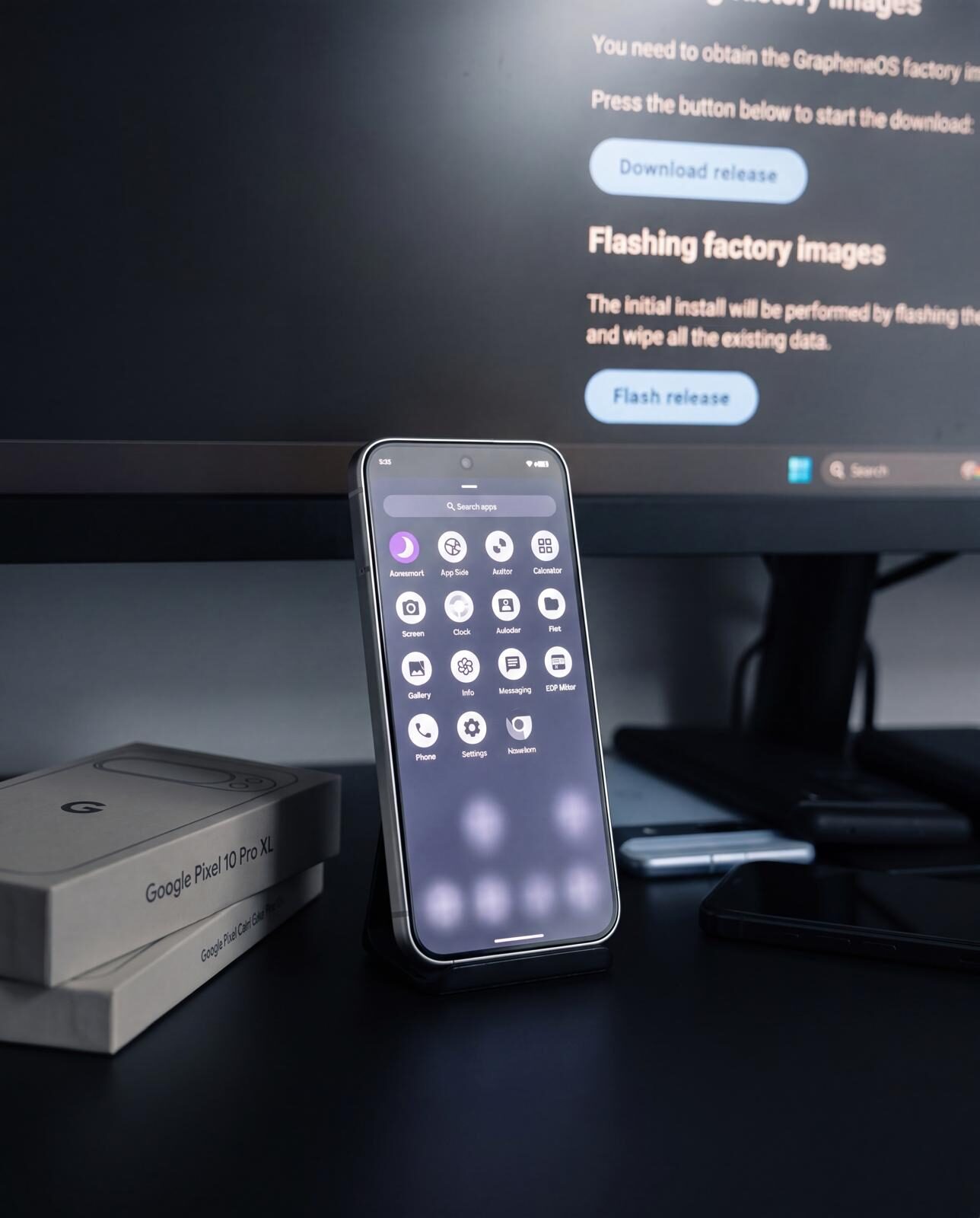
- Only use official releases from grapheneos.org. The official web installer at grapheneos.org/install is the supported method for full installations. It runs in a browser and guides you through the process step by step.
- Never download GrapheneOS images from third-party sources. Forums, file-sharing sites, and unofficial mirrors may host modified or outdated files. There is no way to verify the integrity of files from unofficial sources. Always use grapheneos.org directly.
- A full reinstallation wipes the device. Back up any data you need before proceeding. GrapheneOS does not include cloud backup by default, so ensure your important data is saved to an external location.
Rollbacks and downgrading
GrapheneOS does not officially support downgrading to older versions. The bootloader enforces rollback protection — this prevents the device from running an older, potentially vulnerable version of the operating system. This is a deliberate security measure.
If you have a problem with the current version, the correct path is to report the issue and wait for a fix in the next update, or to perform a clean installation of the latest version using the official web installer.
Do not attempt unofficial rollback procedures found online. These can compromise your device's verified boot chain and may leave it in an unrecoverable state.
When to contact Privacy Devices support
Contact support if any of the following apply:
- The update repeatedly fails after rebooting and retrying multiple times.
- The device will not boot at all, even after a hard reboot.
- You see error messages during the update process that you are unsure how to interpret.
- You are uncertain whether to proceed with a manual reinstallation.
When contacting support, include:
- The current GrapheneOS version (if accessible: Settings > About phone > Build number)
- What steps you have already tried
- Any error messages you have seen
- Whether the device boots to the lock screen, gets stuck on the logo, or does not power on
Best practices
- Install updates promptly. Each update contains security patches for known vulnerabilities. Delaying updates extends your exposure.
- Keep your device charged during updates. Starting an update at 5% battery is avoidable risk. Ensure at least 50% charge or connect to power.
- Use Wi-Fi for downloading updates when possible. It is faster, more stable, and preserves mobile data.
- Do not interrupt an active update installation. If the system is installing an update, let it complete. Do not force-reboot during the installation phase.
- Maintain adequate free storage. Running your device at maximum capacity creates problems beyond updates — but updates are where you will notice it first.
Common mistakes
- Postponing updates for weeks or months. Every day you delay an update is a day you remain exposed to patched vulnerabilities. The update process is designed to be quick and non-disruptive.
- Trying unofficial rollback methods. Rollback protection exists for a reason. Circumventing it compromises your device's security chain and may cause permanent damage.
- Downloading updates from non-official sources. If it is not from grapheneos.org, do not install it. There are no legitimate alternative sources for GrapheneOS system images.
- Force-rebooting during an active installation. If the system is writing to the inactive partition, interrupting the process can corrupt that partition. Wait for the installation to complete before rebooting. The A/B system means your current partition remains safe, but a corrupted inactive partition may require a full reinstallation to recover.
- Panicking when an update fails. The A/B partition system exists precisely for this scenario. A failed update does not destroy your data or your working system. Reboot, retry, and escalate to support if needed.
Reality check
The GrapheneOS update system is robust. The A/B partition architecture means that even in the worst case — a completely failed update — your device remains on the last working version. Bricking a device through the normal update process is extremely unlikely. Most update issues resolve with a reboot and a retry. The small number of cases that do not are handled by the official web installer as a last resort. Keep your device updated, follow the steps above when issues arise, and contact support when you need it.
Updates are the most important ongoing maintenance task for your GrapheneOS device. The process is automated, safe, and resilient by design. When problems occur, the solution is almost always simple: check your connection, free up storage, reboot, and retry. The A/B partition system protects you from failed installations, and the official web installer handles the rare cases that require a fresh start. Do not delay updates, do not use unofficial sources, and do not panic. The system is built to handle this.
Need help with an update issue? We are ready to assist.