VPN Setup
A VPN encrypts the traffic between your device and a server operated by the VPN provider. It prevents your internet service provider, network operator, or anyone else on the local network from seeing the content or destination of your traffic. It changes your visible IP address to one belonging to the VPN server. That is what it does. Understanding what it does not do is equally important.
Why it matters
Every time your device connects to the internet, your traffic passes through infrastructure you do not control — your ISP, the Wi-Fi operator at a cafe, a hotel network, a mobile carrier. Any of these intermediaries can observe which sites and services you connect to, and in some cases, inspect unencrypted traffic.
A VPN creates an encrypted tunnel from your device to the VPN server, removing the local network operator from the observation path. This is genuinely useful. It is also frequently overstated. A VPN does not make you anonymous. It does not prevent tracking by websites you log into. It does not stop apps from collecting data about you. It shifts trust from your ISP to your VPN provider — which means choosing a trustworthy provider is the most important decision in VPN setup.
What a VPN does
- Encrypts traffic between your device and the VPN server, protecting it from observation on the local network.
- Hides your browsing destinations from your ISP or network operator.
- Changes your visible IP address to one belonging to the VPN server.
- Provides protection on untrusted networks such as public Wi-Fi, hotel networks, and shared connections.
What a VPN does not do
- It does not make you anonymous. If you log into accounts, those services know who you are regardless of your IP.
- It does not prevent app-level data collection. Apps tracking you through device identifiers or embedded analytics continue to do so through a VPN.
- It does not stop browser fingerprinting, cookies, or logged-in session tracking.
- It does not hide you from the VPN provider itself. You are trusting the provider not to log or misuse your traffic.
Choosing Mullvad
This guide uses Mullvad as the primary example because it aligns well with privacy-focused use:
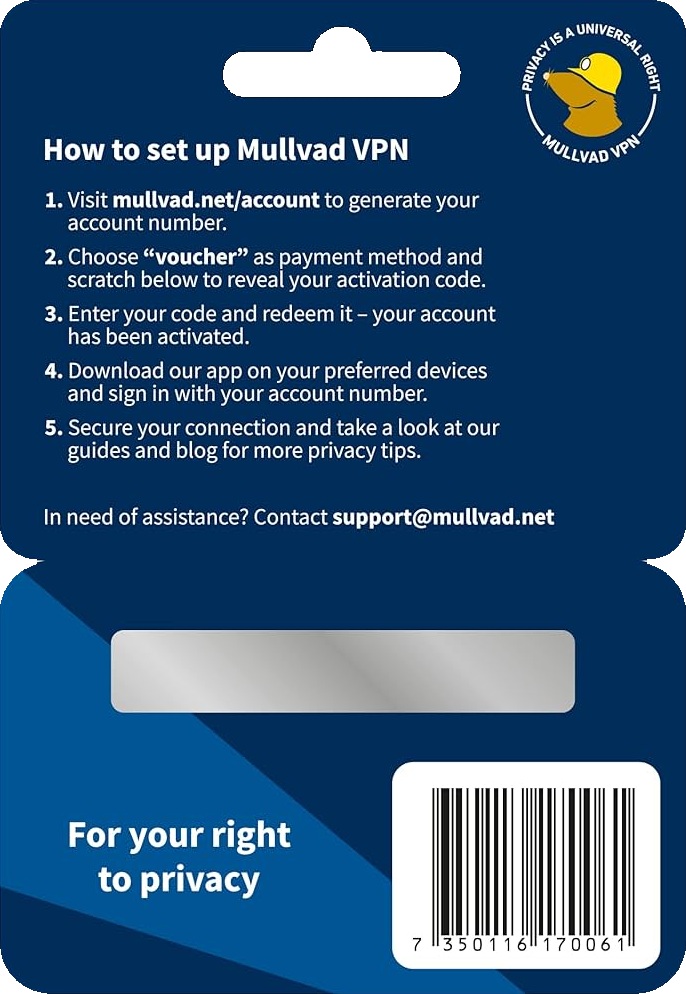
- No account creation. You receive a randomly generated account number. No email, no name, no personal information required.
- Accepts anonymous payment methods including cash sent by mail.
- Published, audited infrastructure with a no-logging policy.
- Open source client applications.
- Does not require Google Play Services on GrapheneOS.
Other reputable VPN providers exist. The principles in this guide apply broadly, but the specific steps reference Mullvad.
Installing Mullvad on GrapheneOS
- Open the browser in the profile where you want to use the VPN.
- Navigate to mullvad.net and download the Android app directly. Mullvad is also available through F-Droid. Neither source requires Google Play Services.
- Install the downloaded APK. You may need to grant permission for your browser to install apps — GrapheneOS will prompt you.
- Open the Mullvad app.
- Enter your Mullvad account number. This is the 16-digit number you received when you created your account. If you do not have one yet, generate one at mullvad.net/account.
- Tap Connect. The app will establish a WireGuard tunnel to the nearest Mullvad server.
- Verify the connection by visiting mullvad.net/check in your browser. The page will confirm whether you are connected through Mullvad and display your visible IP address.
System-level enforcement: Always-On VPN and Kill Switch
Installing the app and connecting is only the first step. To ensure all traffic goes through the VPN — and that nothing leaks if the VPN disconnects — you need to enable system-level enforcement.
- Open Settings > Network & internet > VPN.
- Tap the gear icon next to Mullvad VPN.
- Enable "Always-on VPN." This tells the operating system to maintain the VPN connection at all times and reconnect automatically if it drops.
- Enable "Block connections without VPN." This is the kill switch. When enabled, if the VPN connection drops for any reason, all network traffic is blocked until the VPN reconnects. No traffic leaks outside the tunnel.
Both settings must be enabled together. Without the kill switch, traffic can leak during reconnection. Without always-on, the VPN may not restart automatically.
Per-profile VPN configuration
On GrapheneOS, VPN settings are per-profile. This is an important distinction:
- If you configure Mullvad in your Owner profile, it only protects traffic in the Owner profile.
- Secondary profiles need their own VPN installation and configuration if you want their traffic protected as well.
- Each profile can use a different VPN server, a different VPN provider, or no VPN at all.
This is useful for compartmentalisation. You might route your primary profile through a VPN in one country and a secondary profile through a different server or provider. Or you might use a VPN in profiles where you need it and leave it off in profiles where it would interfere with specific services.
To configure VPN in an additional profile:
- Switch to that profile.
- Install the Mullvad app within that profile.
- Enter your account number (the same or a different one).
- Enable Always-on VPN and Block connections without VPN in that profile's settings.
Private DNS interaction
GrapheneOS supports Private DNS (DNS-over-TLS) at the system level under Settings > Network & internet > Private DNS. If you are using a VPN, understand how these interact:
- When Mullvad is connected, it routes DNS queries through its own DNS servers by default.
- If you have a custom Private DNS provider configured, it may conflict with the VPN's DNS handling, potentially causing queries to bypass the tunnel or fail.
- The simplest approach: when using Mullvad, set Private DNS to "Off" or "Automatic" and let Mullvad handle DNS. Mullvad offers its own filtering DNS options, configurable within the app.
Split tunnelling
Some VPN apps, including Mullvad, offer split tunnelling — the ability to exclude specific apps from the VPN tunnel. Be cautious with this feature:
- Any app excluded from the tunnel sends traffic directly over your regular network connection, visible to your ISP.
- Excluded apps reveal your real IP address to the services they connect to.
- Split tunnelling has legitimate uses (banking apps that block VPN IPs, for example), but every exclusion is a deliberate reduction in protection. Limit it to specific apps with a clear reason.
Best practices
- Enable Always-on VPN and the kill switch in every profile where you use a VPN. Without both, traffic can leak.
- Verify your connection regularly. Visit mullvad.net/check or a similar tool to confirm your VPN is active and your real IP is not exposed.
- Keep the Mullvad app updated. VPN client updates often include security fixes and protocol improvements.
- Use a reputable, audited provider. Free VPN services frequently monetise through data collection, advertising injection, or outright logging. The privacy cost of a free VPN often exceeds the privacy benefit.
- Consider your DNS configuration. Let the VPN handle DNS unless you have a specific reason to override it, and understand the implications if you do.
Common mistakes
- Thinking VPN equals anonymity. A VPN changes your visible IP and encrypts local network traffic. It does not make you anonymous to the services you use, the apps on your device, or the VPN provider itself.
- Forgetting the kill switch. Without "Block connections without VPN" enabled, a VPN disconnection silently reverts to your regular connection, potentially exposing traffic and your real IP.
- Not configuring VPN per-profile. Installing a VPN in your Owner profile and assuming it covers other profiles is incorrect. Each profile requires its own setup.
- Using free or untrusted VPN services. A VPN provider can see your traffic. Using a provider you do not trust undermines the entire purpose. If you would not trust them as your ISP, do not trust them as your VPN.
- Ignoring split tunnelling leaks. Every app excluded from the tunnel is an app operating without VPN protection. Use split tunnelling sparingly and deliberately.
Reality check
A VPN is one layer in a broader approach to network privacy. It is effective at what it does — protecting traffic from local network observers and changing your visible IP — but it does not solve problems it was not designed to solve. It does not prevent tracking through logged-in accounts, device fingerprinting, or app-level data collection. It does not protect against a compromised VPN provider. And it does not replace other protections like encrypted messaging, browser privacy configuration, and careful app permissions.
The value of a VPN is proportional to the trust you place in the provider and the consistency with which you enforce its use. Set it up correctly, enable the kill switch, and verify it regularly.
Conclusion
VPN setup on GrapheneOS is straightforward with Mullvad: install the app, enter your account number, connect, and enforce the connection at the system level. The real work is understanding the boundaries of what a VPN provides and configuring it consistently across every profile where you need it. Enforce the kill switch, verify your connection, and maintain realistic expectations. It is one layer in a system, and it works best when the rest of that system is in place alongside it.
Every Privacy Devices phone can be shipped with VPN pre-configured and ready to connect out of the box.