The GrapheneOS new-user guide
for your first week.
A practical first-week setup checklist for a Privacy Devices Pixel running GrapheneOS — written for buyers in Australia, with the steps in the order you will actually do them.
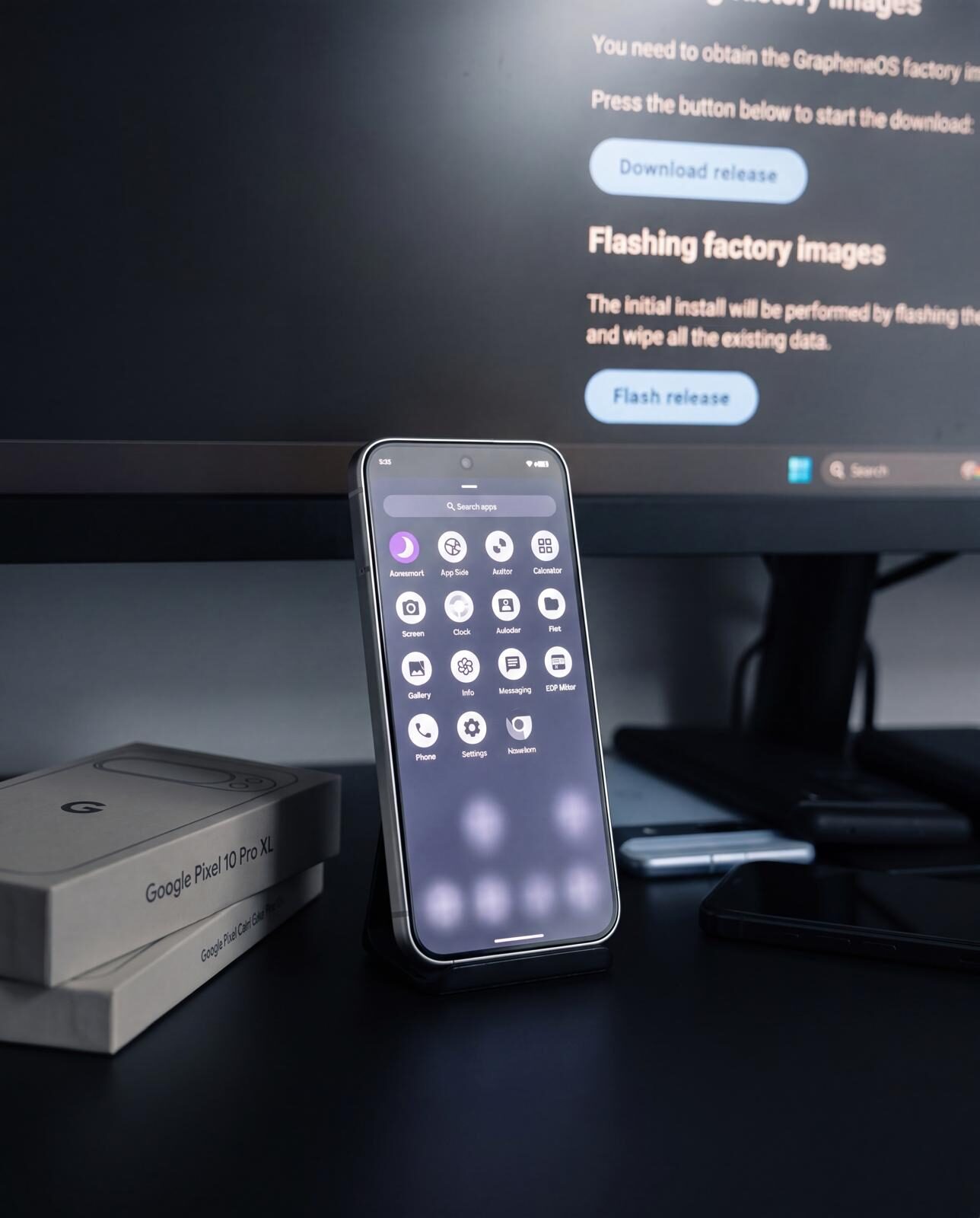
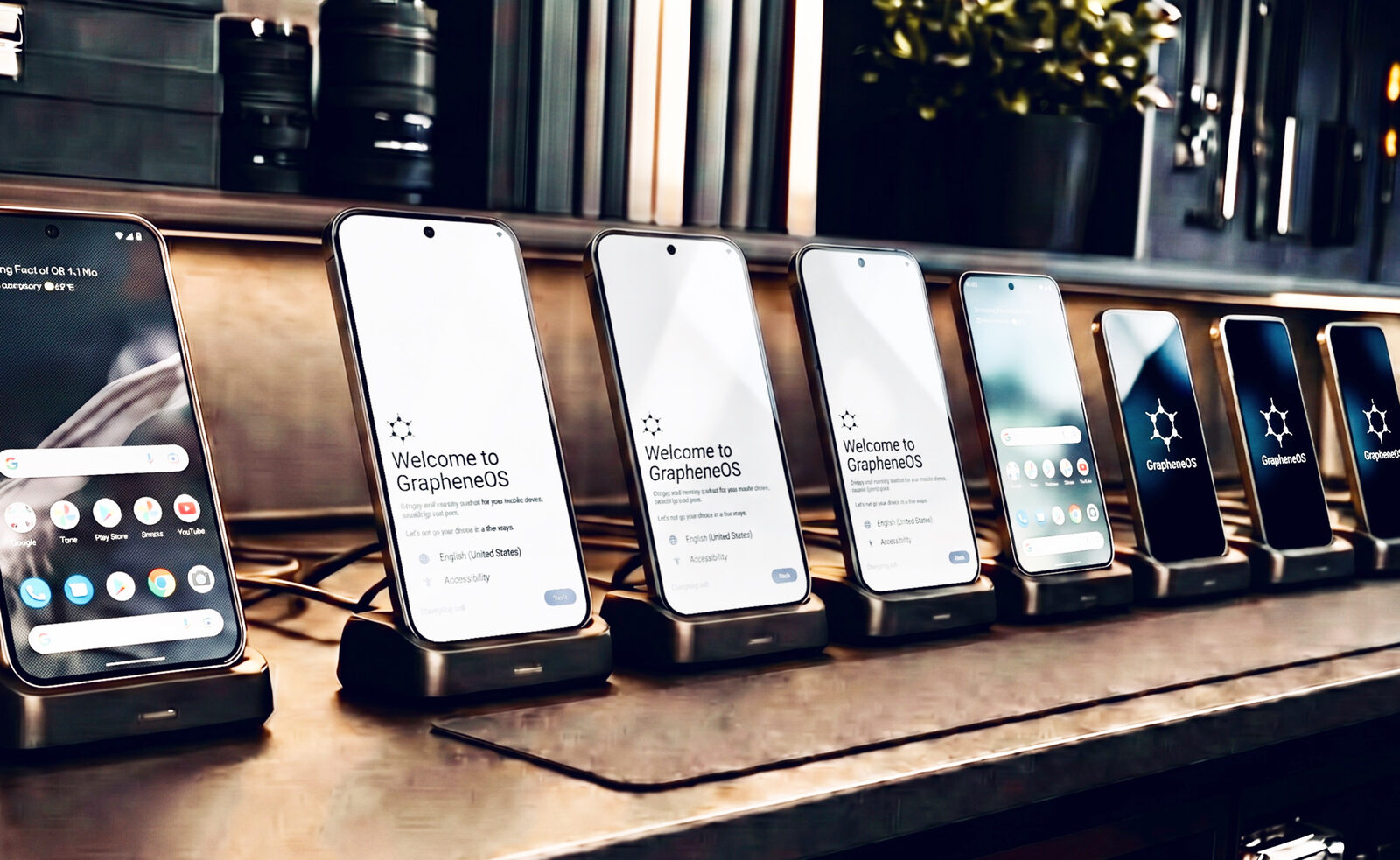
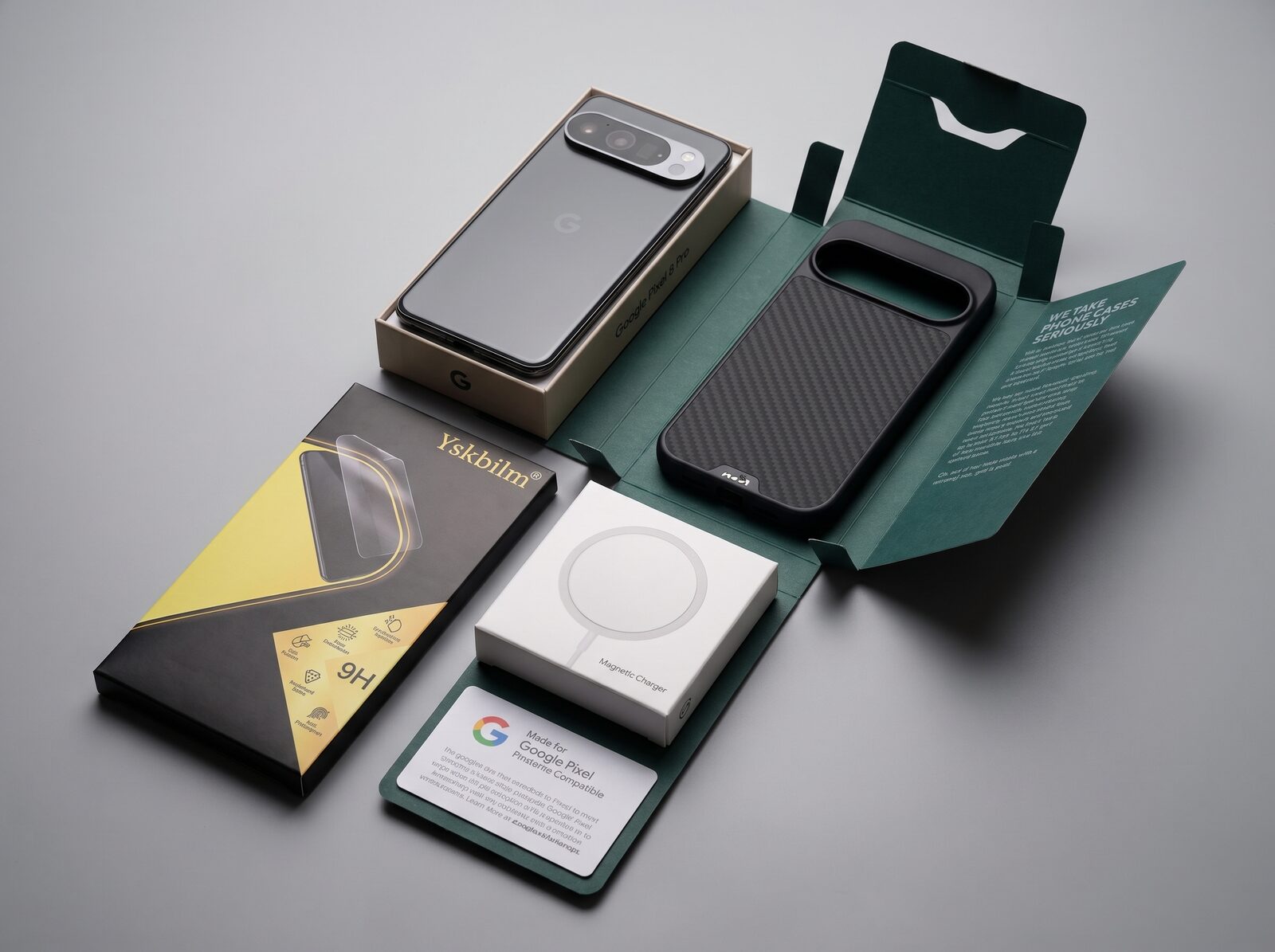
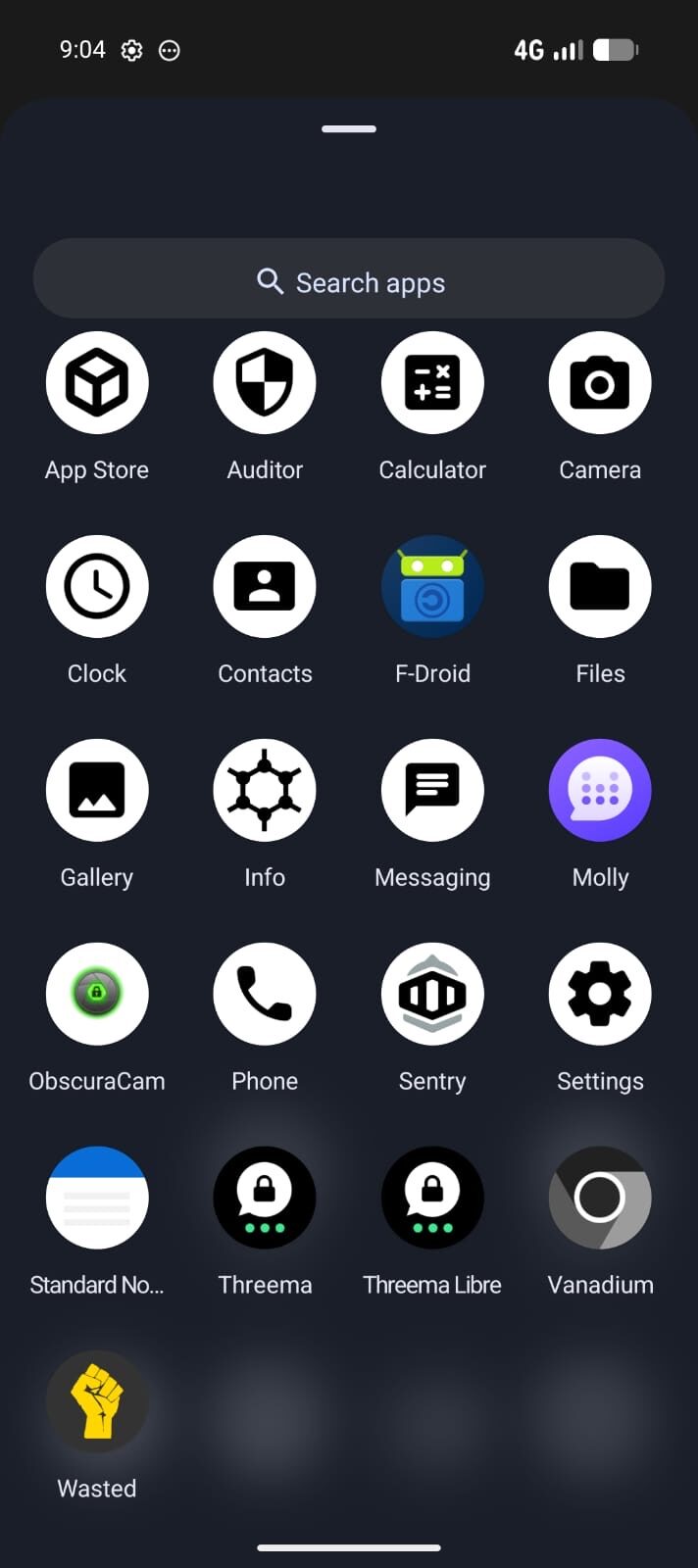
Prepared Pixel, visible proof.
A buyer guide should show the phone, the boot state and the setup work behind the recommendation — not just another block of specifications.
Read this first
If you bought your device from us, the following are already done for you: GrapheneOS installed, verified boot relocked, Threema activated, Mullvad VPN keyed, global eSIM provisioned, Phantom Protocol armed, and update channels confirmed. You can skip past the install steps and start at Day 1.
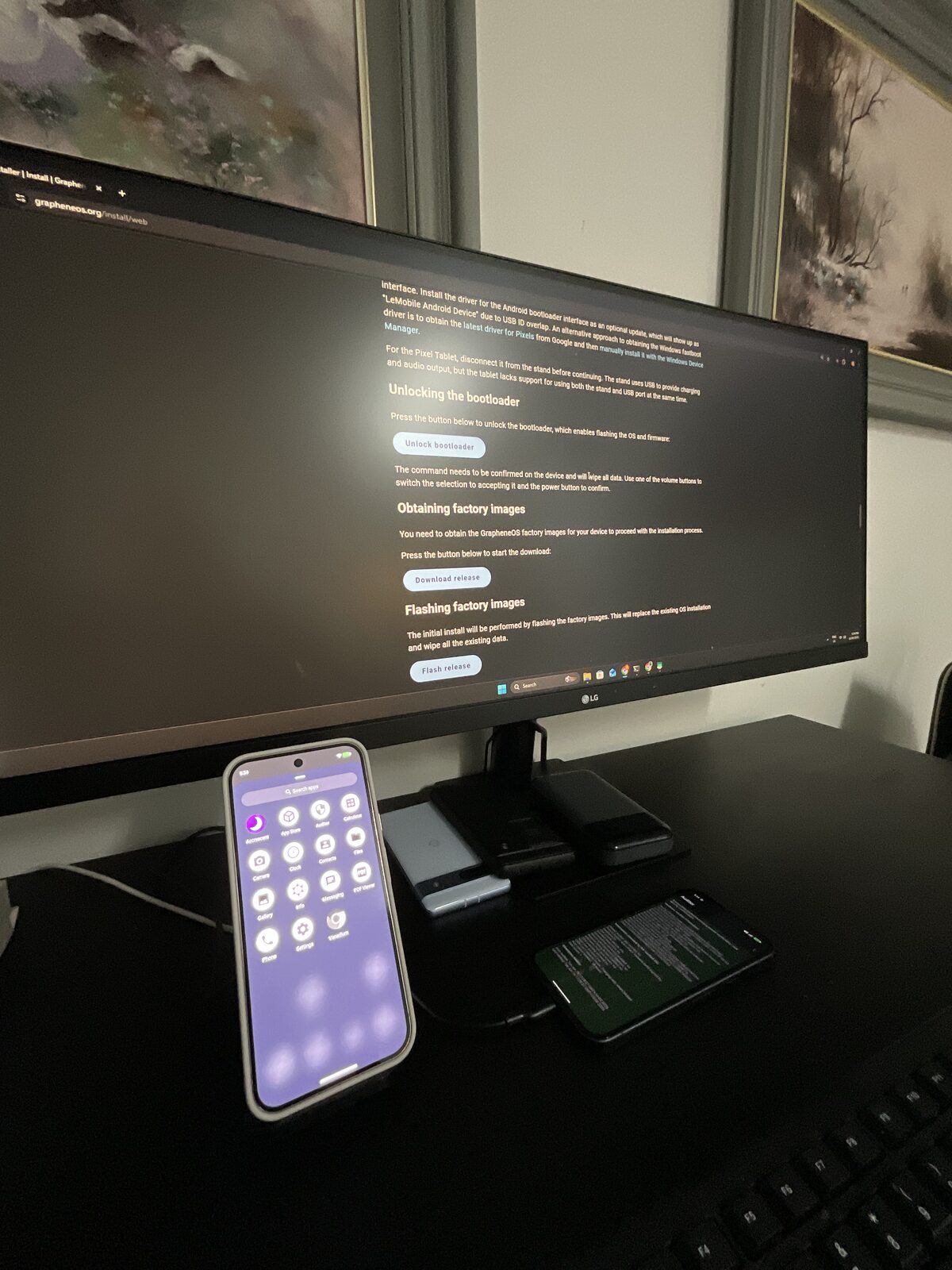
If you flashed GrapheneOS yourself, do the device install first using grapheneos.org/install/web, then come back here.
Prefer a narrative walkthrough over a day-by-day checklist? Our beginner GrapheneOS guide covers the same first week from a different angle.
Day 1 — first boot
Set a strong device PIN
8 digits minimum, not the same as any bank or unlock PIN you use elsewhere. The PIN protects encryption keys at rest. If you forget it, the device cannot be recovered.
Connect to trusted Wi-Fi
Avoid public Wi-Fi for setup. Use a known home or office network until Mullvad VPN is connected.
Confirm OS build
Settings → System → System update. Apply any pending update. Reboot when prompted.
Day 2 — encrypted comms
Your device ships with Threema activated and Mullvad VPN keyed. Sign in using the printed credentials sheet that came with the device. Verify your Threema ID matches the one we sent you (Settings → My ID inside Threema).
For deeper background see our Signal vs Threema on GrapheneOS comparison.
Day 3 — profiles
GrapheneOS supports up to 32 user profiles. Treat them like separate phones: each has its own apps, encryption keys, notifications, and storage.
- Owner profile — sensitive use only. Phantom Protocol, encrypted comms, no Google services.
- Secondary profile — banking, social, anything that needs Sandboxed Google Play.
- Decoy profile (optional) — a clean, plausible profile that can be shown if compelled.
To add a profile: Settings → System → Users → Add user.
Day 4 — banking and required apps
Open the secondary profile. Install Aurora Store from F-Droid. Install your banking apps from Aurora Store. Most Australian banks work on GrapheneOS — we test compatibility before dispatch. If yours does not, contact us first — do not switch device or rooting state.
For a complete app compatibility list see our app compatibility guide.
Day 5 — Phantom Protocol verification
Confirm the duress PIN, remote-wipe trusted contact, and rapid-lockdown gesture. We pre-configure all three. To verify: contact us via Threema and we will walk through a live test (simulated — no actual wipe). See Phantom Protocol overview.
Day 6 — updates and habits
- Updates install automatically when the device is idle and charging. You do not need to take action.
- Keep auto-reboot at 18 hours (Settings → Security). It clears RAM and re-encrypts after long idle periods.
- Connect through Mullvad VPN by default. The Always-on VPN setting prevents leaks.
- Avoid sideloading APKs from unknown sources. Stick to App Store, F-Droid, and Aurora Store.
Frequently asked questions
I just received my GrapheneOS phone — what should I do first?
Boot the phone, set a strong device PIN (8+ digits, not your bank PIN), connect to trusted Wi-Fi, run Settings → System → System update to confirm you have the latest GrapheneOS build, then sign into Threema and Mullvad VPN using the credentials we provided.
Do I need a Google account to use this phone?
No. GrapheneOS is fully usable without any Google account. If a specific app you need requires Google services, you can install Sandboxed Google Play in a separate Owner profile or work profile — never in your primary profile.
How do I install apps?
Use the pre-installed App Store (GrapheneOS), F-Droid for open-source apps, and Aurora Store for Play Store apps without a Google account. Avoid sideloading APKs from unknown sources.
Will my Australian banking apps work?
Yes — most Australian banks (CBA, ANZ, Westpac, NAB, Macquarie, Up, ING, Bendigo) work on GrapheneOS via Sandboxed Google Play in a secondary profile. We test compatibility before dispatch and document known issues. See our banking apps guide.
What is a profile and should I use one?
GrapheneOS supports up to 32 isolated user profiles, each with separate apps, accounts, and storage. We recommend keeping the Owner profile for sensitive use only, and a secondary profile for banking, social, and Google-ish apps. Profiles are cryptographically isolated.
How do I set up the duress PIN?
Settings → Security → Auto-reboot and Duress password. Enter a separate PIN that, when used, silently wipes the device. We pre-configure this as part of Phantom Protocol — verify the trigger PIN with us via Threema after dispatch.
How often does GrapheneOS update?
GrapheneOS pushes monthly Android security patches plus its own privacy and security features. Updates install automatically when the device is idle and charging. You do not need to do anything.
Need a pre-configured device instead?
Skip the setup. Every Privacy Devices phone ships with this entire checklist already complete — configured, hardened, and tested before dispatch.
Browse Secure Devices → Talk to a Specialist