Contacts, Photos and Files
Transferring your personal data to a new device is the moment most people accidentally undermine their own privacy. They dump everything from the old phone to the new one without thinking about what actually needs to come across, how it should be organised, or which profile it belongs in. This guide covers the deliberate approach — moving contacts, photos, and files to your GrapheneOS device with intention and minimal exposure.
Why it matters
Your contacts list, photo library, and file collection represent years of accumulated personal data. Who you know, where you have been, what you have documented — this information has significant value to anyone who accesses it, and significant risk if it ends up in the wrong place.
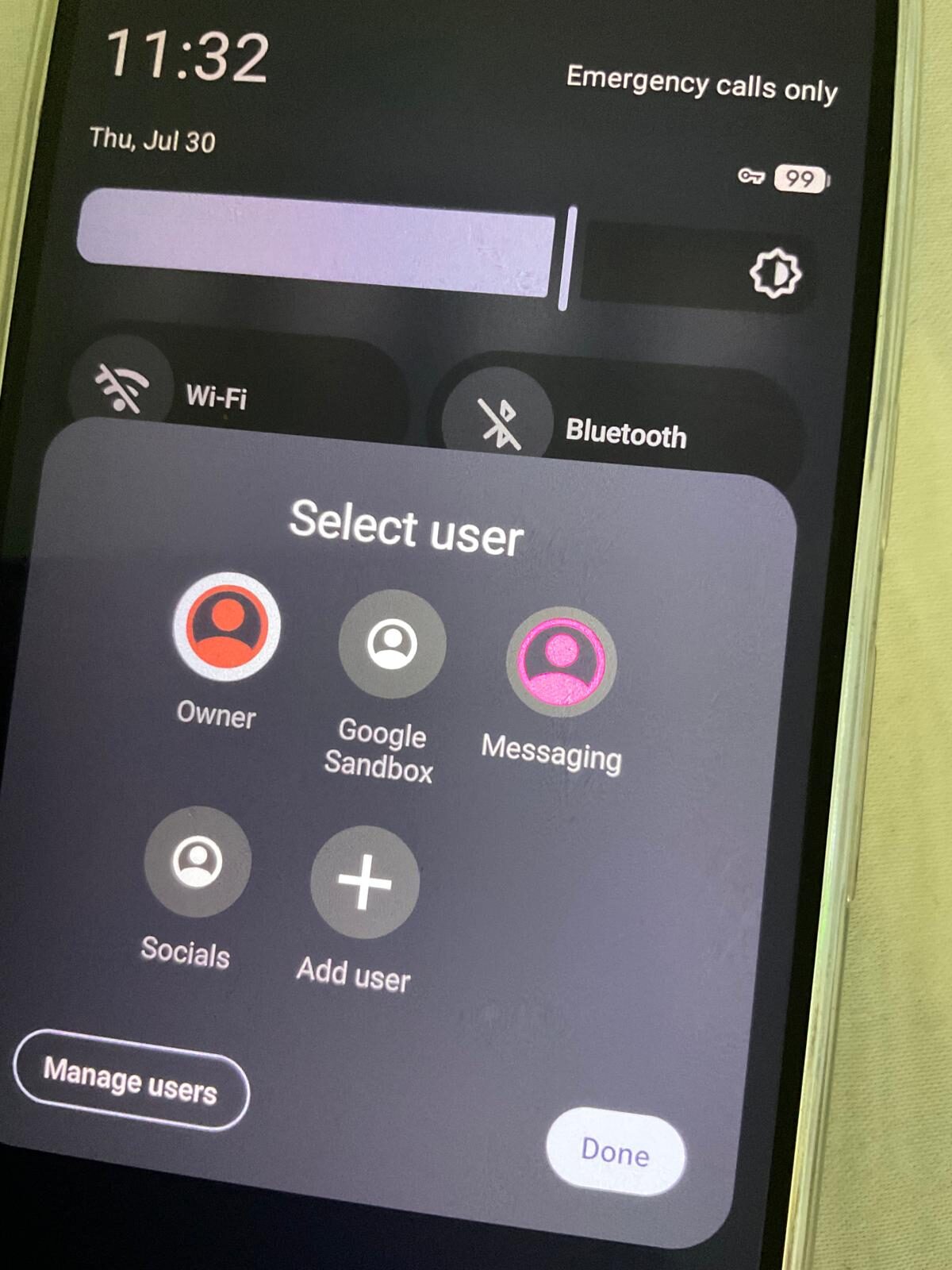
GrapheneOS gives you profile-level separation, scoped storage, and Contact Scopes that let you control which apps see which data. But these tools only help if you are deliberate about what goes where during the transfer. Importing everything into every profile with broad permissions undoes the structural advantages before you have even started using the device.
The transfer process is also a natural filter. Most people carry thousands of photos they will never look at, contacts for people they no longer know, and files from projects long finished. Moving to a new device is the right time to clean.
Contacts
- Export contacts from your old device as a VCF (vCard) file.
- From iPhone: Go to iCloud.com > Contacts > select all > Export vCard. Alternatively, open the Contacts app, select all, and share as a VCF file.
- From Android with Google account: Go to contacts.google.com > Export > Google CSV or vCard format.
- From Android without Google: Open Contacts app > Menu > Export > save as VCF to internal storage or SD card.
- Transfer the VCF file to your GrapheneOS device. Use a USB cable connected to a computer, or transfer directly between phones via USB if supported. Avoid emailing contact files through third-party services if your contact list includes sensitive entries.
- Import contacts on GrapheneOS. Open the VCF file using the Files app, and the Contacts app will offer to import. Alternatively, go to Settings > Contacts > Import and select the VCF file.
- Decide which profiles need which contacts. You likely do not need your full contact list in every profile. Your banking profile may need no contacts at all. A work profile may only need work contacts. Import selectively by splitting your VCF file or by importing everything and then deleting unneeded entries from specific profiles.
- Configure Contact Scopes for apps that request contacts access. When an app asks for contacts permission, GrapheneOS lets you use Contact Scopes to expose only specific contacts rather than your entire address book. This is particularly useful for messaging or social apps where you want to find certain people without revealing everyone you know.
Photos
- Select the photos you actually want to transfer. Do not transfer your entire camera roll by default. Review it. Most people find that a fraction of their photos are worth keeping on an active device. The rest can stay in a backup.
- Transfer via USB cable. Connect your old device to a computer, copy the selected photos, then connect your GrapheneOS device and paste them into the appropriate folder (typically DCIM or Pictures). USB transfer is the most private method — no cloud service, no third-party app, no server in between.
- If USB is not practical, use a temporary secure method. An encrypted USB drive works well. A temporary upload to an end-to-end encrypted cloud service is acceptable if you delete the upload immediately after transfer. Avoid using unencrypted cloud storage or services that scan uploaded photos.
- Avoid enabling automatic photo syncing on your new device. Do not set up Google Photos, iCloud, or any automatic cloud backup for photos on GrapheneOS. If you want cloud backup, choose it deliberately with an end-to-end encrypted service, and limit it to a specific profile.
Files
- Identify which files you need on the device. Documents, PDFs, specific work files — most files live better on a computer than a phone. Transfer only what you will actively access on the device.
- Transfer via USB or encrypted USB drive. Same principle as photos. Direct transfer avoids routing your files through external services.
- Place files in the correct profile. If you have work files, they belong in your work profile. Personal documents in your personal profile. Do not dump everything into one location.
- Be cautious with cloud sync apps. If you install a file sync app like Nextcloud or Syncthing, install it only in the profile where those files belong. Avoid installing sync apps in sensitive profiles where they could expose data or require broad storage permissions.
Best practices
- Clean as you transfer. This is not a backup restoration — it is a curated migration. Every contact, photo, and file you bring across is data you are choosing to carry. Choose carefully.
- Use scoped storage to your advantage. GrapheneOS enforces scoped storage by default, meaning apps can only access their own files unless you explicitly grant broader access. Do not grant broad storage permissions unless an app genuinely requires it for its core function.
- Delete temporary transfer copies. After confirming everything transferred correctly, delete any copies on the computer, USB drive, or temporary cloud service you used during the process. Leftover copies are an exposure risk you do not need.
- Verify data integrity after transfer. Open a sample of contacts, photos, and files on the new device to confirm they transferred correctly. Catching a corrupted transfer early is easier than discovering it weeks later when you need a specific file.
- Keep a separate offline backup. Your GrapheneOS device should not be your only copy of important data. Maintain an encrypted backup on a separate drive or secure storage that does not depend on the phone.
Common mistakes
- Importing everything without filtering. Transferring 50,000 photos when you need 500, or importing 2,000 contacts when you actively communicate with 50, creates unnecessary data exposure on your new device. More data means more to protect and more to lose.
- Granting broad storage permissions to apps. When an app asks for storage access, consider whether it needs access to all your files or just its own. Most apps work fine with scoped storage and do not need full file system access.
- Using unencrypted transfer methods. Uploading your contacts or photos to an unencrypted cloud service, emailing them to yourself through a provider that scans attachments, or using a random file transfer app all expose your data to third parties unnecessarily.
- Leaving temporary copies on intermediate devices. The computer you used for transfer, the USB drive, the temporary cloud upload — all of these retain copies of your data unless you explicitly delete them. Treat the transfer process as a chain and clean every link.
- Putting all data in one profile. The point of profile separation is compartmentalisation. If every profile has every contact and every file, you have a single profile with extra steps. Be intentional about what goes where.
Reality check
Data migration is tedious. There is no way around that. But the time you spend being deliberate about what you transfer and where you put it pays dividends in the months and years that follow. A clean, well-organised device with only the data you need is faster to use, easier to secure, and less stressful to lose than a device stuffed with everything from the last decade.
Some data will not transfer perfectly. Contact photos may not carry over. Some file formats may need different apps to open. These are minor inconveniences that resolve quickly, not reasons to shortcut the process.
Transferring contacts, photos, and files to your GrapheneOS device is an opportunity, not a chore. It is the moment to decide what you actually carry with you, which profile holds what, and how tightly you control access to your personal data. Transfer deliberately, clean aggressively, and use the tools GrapheneOS provides — Contact Scopes, scoped storage, and profile separation — to keep your data organised and contained from day one.
Start fresh with a device designed to keep your data under your control.